Home > Using CampControl > Orders > Orders In Progress > Assign Items
Assign Items
View this page in Español, Français, Português, Русский or another language.
Once the order has been confirmed, it becomes available to the expediters to work with.
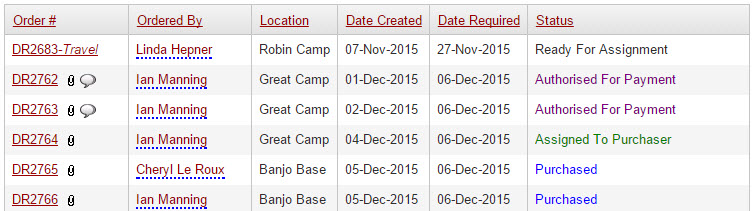
Orders showing "Ready for Assignment" in the Status column have items which need to be assigned to someone (who has the appropriate CampControl permission) to do the purchasing.
As soon as all items from an order have been marked as "In Accounts" or "Paid", they disappear from the "Orders in Progress" list.
Clicking on an order number in the above list will display the screen on which items are assigned to persons for purchase, as shown below:
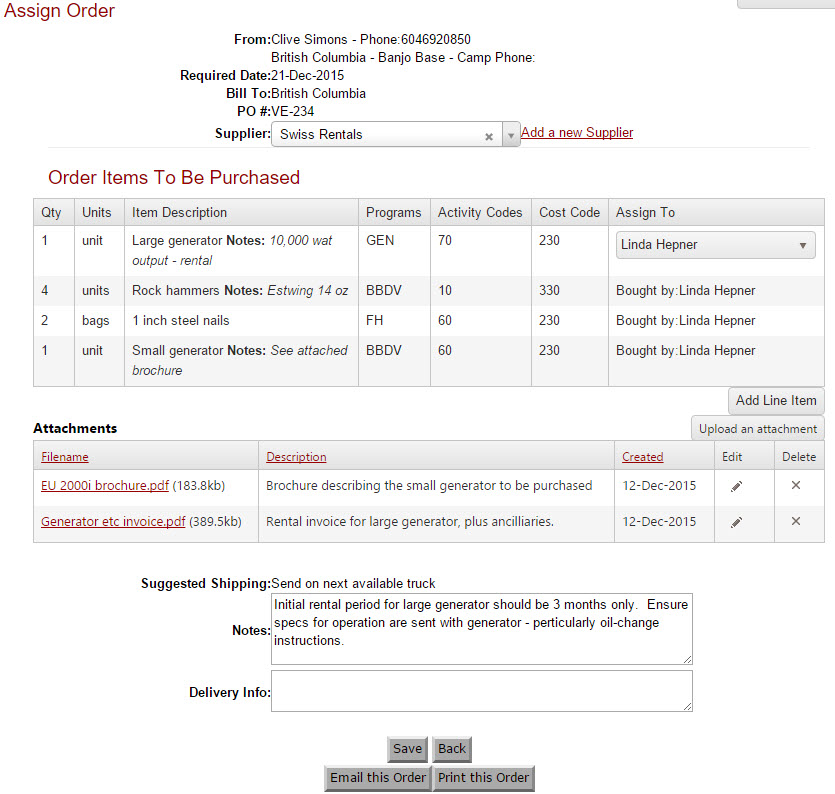
While small expediters, or exploration companies without expediters, may assign all items for purchase to one person, many expediters spread the purchasing between a number of people. CampControl allows ordered items to be assigned to different persons for purchase.
Once all possible assignments have been made, clicking on the Assign button will flag the assigned items appropriately, and they will appear on the Assigned Items list of whoever they were assigned to. If any items are left un-assigned, as shown above, the Order will show a drop-down list of possible assignees.
If any serious problems are identified on the order, the entire order may be returned to "draft" status by clicking on the Return to Draft button at the top of the page (button not shown in screenshot above, as some items have been already purchased).
In summary:
Click the item to view details of the item and optionally update its Financial Category (see Order Item Details).
Click “Assign” to assign the order, which moves this order to the Assignee’s “Assigned Orders” screen.
Click “Back” to return to the “Orders in Progress” screen and without making any changes.
Click “Email this order” to email it or “Print this order” to print it out.
Click “Post New Comment” to add a comment to the order. This is visible to all that are designated to this Location, Region or Company (see Designate User for details). Any previous comments may be replied to and are associated to the order.
You need the following permissions (see Manage Permissions):
To view this screen: "Assign Orders"

See also